
Contents
The Three Things iPhone Calls Sharing a ContactHow to Share Your Contact Card with NameDropHow to Share a Contact Card from the Contacts AppThe Share Your Name and Photo Prompt Is Not Your Contact CardHow to Turn Contact Sharing Off, Switch by SwitchSharing Your Contact with an Android PhoneWhen the Built-In Contact Card Isn't EnoughWhich Way to Share, WhenConclusionFAQHow to Share a Contact Card on iPhone: NameDrop, AirDrop, vCard
To share a contact on iPhone, open the Contacts app, tap the card you want to send (My Card at the top is your own), tap Share Contact, choose the fields to include, then pick Messages, Mail or AirDrop from the share sheet. The other person receives a .vcf file and taps it to save the contact. To share your own card with someone standing next to you, hold the top of your iPhone a few centimeters from the top of their iPhone until NameDrop appears on both screens, then choose whether to share your card and receive theirs or only receive. The “Share your name and photo?” prompt in Messages is a third, separate feature: Name & Photo Sharing sends your name, photo and Contact Poster to the people you message, not your contact card. None of the tap-based routes reach an Android phone; a message with the .vcf attached does.
Those are three different features that iPhone owners describe with the same words, and the right button depends on which one you mean. This guide separates them, walks through each with the labels from Apple's iOS 27 iPhone User Guide, and then covers what Apple's own pages leave out: what actually lands on the other phone, who can see your card, how to switch each kind of sharing off, and what to do when the other phone is an Android.
The Three Things iPhone Calls Sharing a Contact
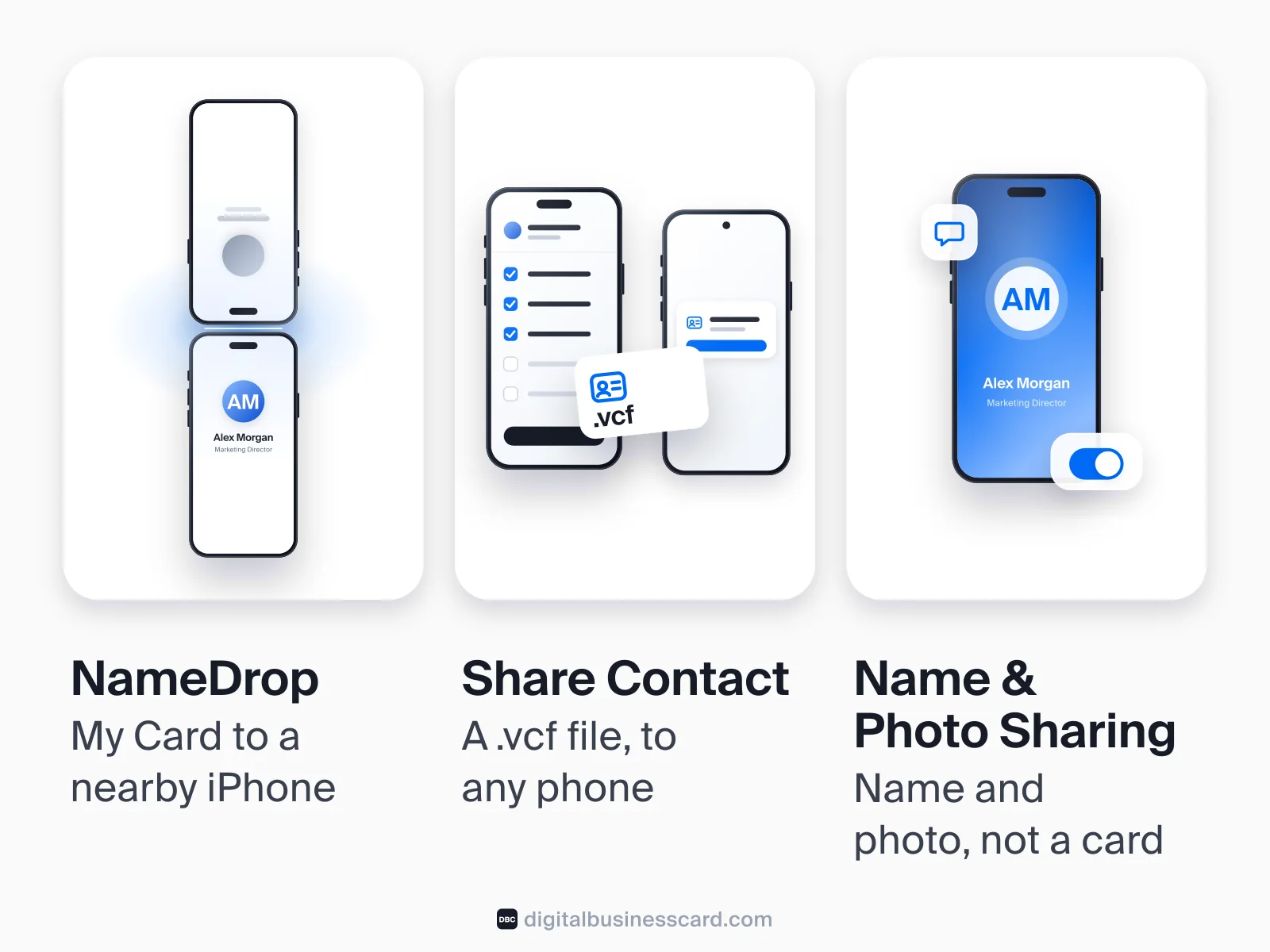
Before any steps, the map. Each feature has its own job, its own reach and its own switch.
- NameDrop sends your own card — My Card — to a nearby iPhone or Apple Watch when you hold the two devices together. It adds new contacts only; Apple's guide is explicit that it “only works for sending new contact information, not updating an existing contact.” One switch controls it: Settings > General > AirDrop > Bring Devices Together.
- Share Contact is the button at the bottom of any card in the Contacts app, yours or anyone else's. It writes a .vcf file containing the fields you tick and hands it to the share sheet: Messages, Mail, AirDrop, WhatsApp, anything that carries an attachment. It has no switch, because it happens only when you tap it.
- Name & Photo Sharing is the “Share your name and photo?” prompt in Messages. Apple describes it as a way to “automatically share your updated name, photo, and poster with people in your contacts.” It puts your face and poster on their screen when you call or text; it does not send a contact card.
Most of the confusion is about the third one: “share my contact photo” and “share my contact card automatically” describe Name & Photo Sharing, while “share my contact card” means one of the first two. Knowing which you want saves you from flipping the wrong switch.
How to Share Your Contact Card with NameDrop
NameDrop is for the person in front of you, and it works only between an iPhone and another iPhone or an Apple Watch. Apple introduced it with iOS 17 on September 18, 2023, calling it “a new AirDrop feature” that “lets users exchange contact information, including their Contact Poster, simply by bringing their iPhone devices together.”
Set Up My Card First
NameDrop sends My Card and nothing else, so fix the card before the tap. Apple's guide puts it this way: “iPhone uses your Apple Account to create your contact card, called My Card, in the Contacts app.” Open Contacts, tap My Card at the top, then tap Edit. If there is no My Card, tap the plus button, enter your details, return to the contact list, touch and hold your new entry and tap Make this My Card — the steps are on Apple's add or edit your contact info page.
Two things deserve a look while you are in there. First, suggestions. Apple notes that “Contacts suggests addresses and phone numbers to help you,” and on your own screen a suggested line looks like part of the card. In January 2024 an Apple Community member asked whether people they had shared their card with could see a “suggested” address that “popped back up” after they deleted it. The clean fix is to remove anything you did not type yourself; the second line of defense is the field list you see at share time, which shows only real fields. Second, the poster: tap your contact photo, choose a style, then tap Customize to edit the avatar and the poster. This is the full-screen image the other person sees while NameDrop runs.
The Steps in iOS 27
Apple's iOS 27 NameDrop guide gives four moves:
- Hold the display of your iPhone a few centimeters from the top of the other person's iPhone or Apple Watch.
- Keep the devices near each other until NameDrop appears on both screens.
- Choose to share your contact card and receive theirs, or to only receive theirs.
- If you are sharing, tap the arrow, select the fields you want to include, then tap Save.
To cancel, move the two devices apart or lock your iPhone before the transfer completes. On the watch side, Apple lists Apple Watch Ultra models, Apple Watch Series 7 and later, and Apple Watch SE 2nd generation and later.
Apple's guide adds that the same fields “will be selected by default” the next time you use NameDrop — a line the page has carried since its iOS 17 version. The complaint in the Apple Community thread “Share contact info needs to limit what is shared” (September 2023 to January 2024) is about Share Contact from the Contacts app: a December 2023 reply explains that choosing fields “has to be done each time you share a contact as the app does not remember these choices,” and Apple's Share Contact page still describes choosing the fields on every share and says nothing about remembering them — more on that below.
What NameDrop Sends, and Never Sends
Apple's Personal Safety User Guide is the one place that spells this out: “NameDrop shares only your name, the phone number or email address you choose, and Contact Poster information. It doesn't share other information in your Contact Card, like your home address or birthday.” Pronouns are not shared by default, and you can pick the receive-only option and hand over nothing at all. Because NameDrop adds new contacts only, if the other person already has you saved nothing arrives — use Share Contact to send them the updated card instead.
If NameDrop Doesn't Appear
Three sourced checks, then a retry. Settings > General > AirDrop > Bring Devices Together must be on, on both phones; it is on by default, and Apple's Personal Safety guide labels the same switch “Bringing Devices Together.” Both phones need iOS 17 or later — Apple released iOS 17 “for iPhone Xs and later”, and its own App Store measurement from June 7, 2026 puts 79% of all iPhones on iOS 26 alone (86% of those introduced in the last four years), so a phone too old for NameDrop is rare and the setting is the likelier culprit. And remember that NameDrop sends new contacts only: if the other person has you saved, it will not show. Move the phones apart and bring them together again.
How to Share a Contact Card from the Contacts App
This is the universal route. It works for your own card and for anyone else's, it goes through every app in your share sheet, and the result is a file every address book can read. This guide covers the routes that hand over a contact card or file; typing or pasting your details into a message as plain text is not one of them.
Share Contact, Pick the Fields, Choose Messages, Mail or AirDrop
Apple's instruction: “Go to the Contacts app on your iPhone. Tap a contact, tap Share Contact, then choose the fields you want to share.” Then tap the share button and “choose a sharing option, such as Messages or Mail.” AirDrop sits in the same sheet, so for someone in the room the path is Share Contact, fields, AirDrop, their name. To send your own card, scroll to the top of Contacts and start from My Card.
The field list is the part worth slowing down for. The thread quoted above opened in September 2023 with: “The ‘me’ contact that Apple recognizes as who I am includes a lot of info that I don't want to share when I share contact.” A later reply: “It has caused me embarrassment a couple of times when I missed the de-selection of a personal field to a vendor.” Home address, birthday, the personal email and the second phone number are the usual casualties. Read the list before you tap share, every time.
What the Other Person Actually Receives
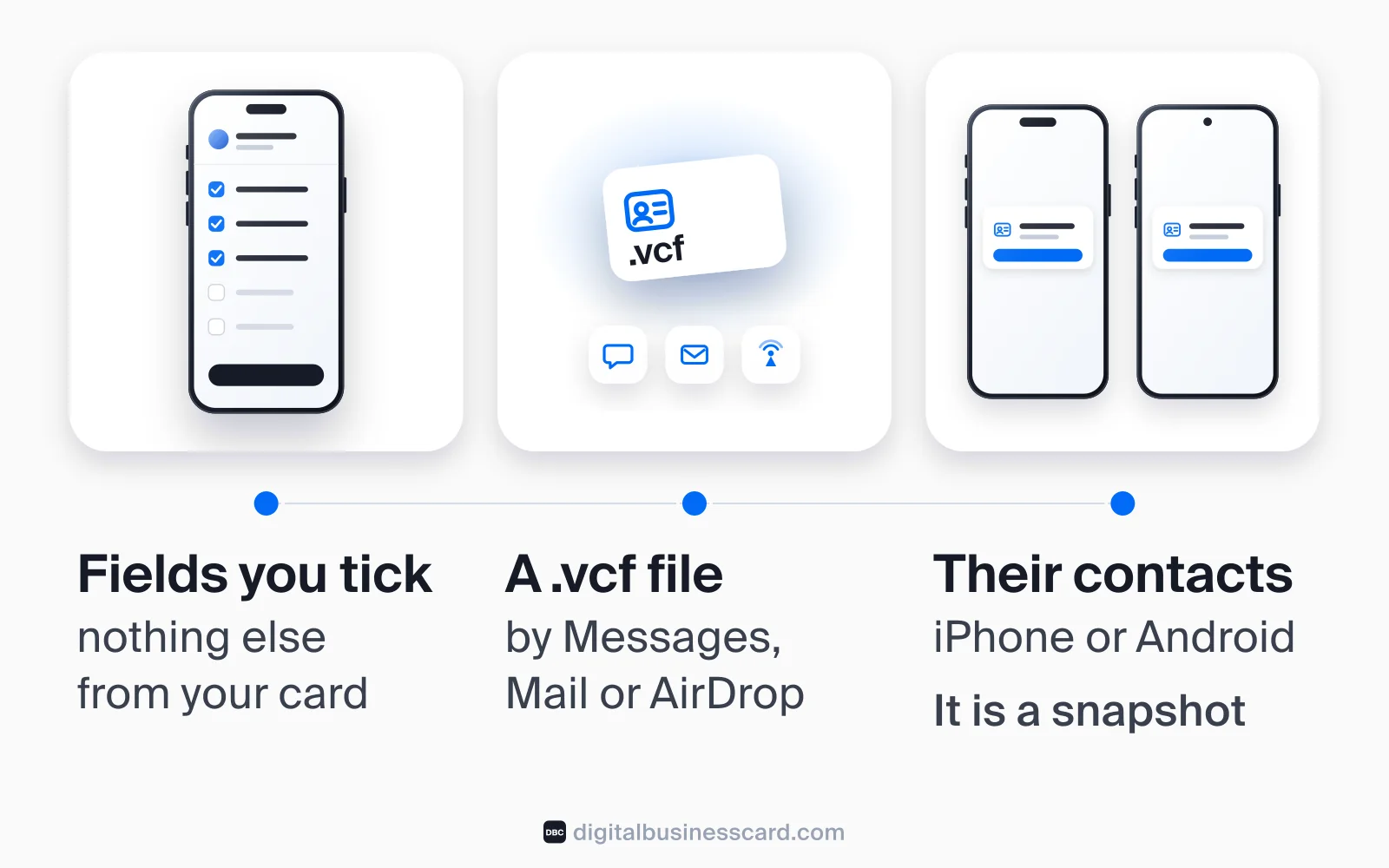
A vCard — a plain-text contact file with a .vcf extension. Apple's import page describes the receiving end in one line, “Tap a .vcf attachment in an email or message,” and iOS offers to add the contact. On an Android phone the same attachment opens in its contacts app, because a vCard is the format every address book reads; the fields inside it, and why a photo or job title sometimes goes missing, are covered in what a vCard is.
Three properties of that file matter more than its name. It contains only the fields you ticked — nothing else from your card travels. It is a snapshot: the moment you send it, it is detached from your card, and a new number or employer you add next month never reaches it. And it reports nothing back. You cannot see whether they opened it, saved it or left it sitting in the thread.
Sharing Many Contacts at Once: Export a Contact List
Apple's export page: in Contacts, tap Lists, touch and hold an existing list (or create a new one with Add List), tap Export, select the fields to include, tap the share button, then choose Messages, Mail or another destination. Apple says you can export “some or all” of your contacts this way, and the receiver gets them in one attachment. The thread that surfaces for this on Apple's own forum, “Share entire contact list”, was opened on June 27, 2024 by someone moving their own contacts to a new phone who did not want to “share the contacts one at a time through mail”; it showed 178 clicks on its “Me too” counter when we checked on November 9, 2026 — a forum counter, not a survey, and a migration question rather than a sharing one, but the Export route above answers both.
The Share Your Name and Photo Prompt Is Not Your Contact Card
Name & Photo Sharing is the feature behind the prompt. Apple's wording: “You can choose to automatically share your updated name, photo, and poster with people in your contacts.” To set it up, go to Contacts > My Card > Edit, tap your contact photo, then turn on Name & Photo Sharing (you may need to scroll down). Pick Contacts Only to share automatically with people in your address book, or Always Ask to be prompted before your name, photo and poster go to anyone. The same switch lives in Messages: tap Edit or the More button, tap Name & Photo, and turn sharing on or off; with Always Ask, Apple's Messages guide says “you'll be asked to confirm that you want to share with someone when sending or replying to a new message.”
Apple's description lists three things it shares — name, photo, poster — and a contact card is not among them. Nobody receives your phone number, email or address because of this setting; what changes is how you appear on their screen. When people ask who can see their contact card on iPhone, this is usually the feature they have in mind, and the answer is: your contacts see your name and photo if the setting is on; your card itself goes only to the people you send it to with NameDrop or Share Contact.
How to Turn Contact Sharing Off, Switch by Switch
Three features, three answers.
- NameDrop: Settings > General > AirDrop, then turn off Bring Devices Together. Apple's NameDrop guide notes this also turns off the other Bring Devices Together features — the same gesture that, per Apple's iOS 17 announcement, shares content or starts SharePlay.
- Name & Photo Sharing: Contacts > My Card > Edit, tap your photo, turn off Name & Photo Sharing — or switch it to Always Ask if you only want a confirmation. In Messages: Edit or More, then Name & Photo.
- Share Contact: there is nothing to turn off. It happens only when you tap the button, and the field list is where you control what goes out.
The mirror question, how to activate share contact on iPhone, has the same three answers in reverse: NameDrop is on by default, Share Contact is always available, and Name & Photo Sharing is the one you switch on.
Sharing Your Contact with an Android Phone
Nearly half the phones you meet in the United States cannot receive a NameDrop. StatCounter's figures for October 2026 put iOS at 51.96% of US mobile operating systems and Android at 48.02%. Apple's NameDrop guide names iPhone and Apple Watch as the only receivers, and its AirDrop guide describes sending “to a nearby iPhone, iPad, or Mac,” and only to recipients with Wi-Fi and Bluetooth turned on. NameDrop has no Android counterpart that talks to it. AirDrop has one dated exception: since November 20, 2025 Google's Quick Share can receive AirDrop transfers — on the Pixel 10 first, the Pixel 9 family from February 17, 2026 and Samsung's Galaxy S26 series from March 2026 — and Google's support page names certain Samsung, Oppo, OnePlus, Vivo, Xiaomi, Honor, Transsion and Motorola devices as having AirDrop-compatible Quick Share as well. The switch is on their side, not yours: a Pixel 9 or later (not the 9a) sets its Quick Share visibility to Everyone for 10 minutes or opens the Quick Share page in Receive mode, and a Galaxy S26 has a Share with Apple devices switch in Quick Share, on by default according to Samsung; your own AirDrop visibility matters only when they send to you. On an Android without that support, the file goes by message.
Android has its own tap gesture now, and it has the same border. Google's Tap to Share launched with the Pixel 11 line and, as Tech Advisor reported on August 13, 2026, starts on Pixel 6 and later, then Samsung's Galaxy Z Fold 8 and Flip 8, with “more Android devices by the end of the year”; nothing in the announcement mentions iPhone. Two Pixels can tap; a Pixel and an iPhone cannot.
What crosses the border is the file. Share Contact, choose the fields, then pick Messages, WhatsApp or Mail: the Android phone opens the .vcf in its contacts app. The Contacts app has no built-in QR code for your card, so a scan-to-save on iPhone means a card app or a third-party generator; if the person opposite you is building their own card on Android, our guide on creating a digital business card on Android covers their side.
When the Built-In Contact Card Isn't Enough
For a personal number between two iPhones, NameDrop is quick and it is enough. The built-in card runs into four limits the moment contact sharing becomes part of your work:
- It is a snapshot. Every .vcf you have sent stays as it was the day you sent it. A new role, phone or company reaches nobody.
- You pick the fields per share. NameDrop keeps your last selection as the default; Share Contact, by Apple's description, asks every time. One missed checkbox sends your home address to a vendor.
- The tap stops at the Apple border. NameDrop reaches iPhones and Apple Watches; AirDrop reaches Apple devices and, where the maker has added it, recent Androids set to receive through Quick Share; everyone else gets a file by message.
- You learn nothing afterwards. No view, no save, no signal that the conversation went anywhere.
A digital business card is built for exactly that moment. We make DBC: Digital Business Card, and here is what changes when you use one. Your card lives at a permanent link with its own QR code and an Apple Wallet or Google Wallet pass, so the sharing surface is the same on a trade-show floor and in a text message, and any phone opens it in a browser — the receiver installs nothing. You decide once what is on the card; there is no field list to re-tick. You edit the card and the link shows the change — every QR code you have printed and every link you have sent keeps resolving to the current version. You see views and saves, so a quiet conversation and a saved contact no longer look the same. And with two-way exchange turned on, the person who opens your card can leave theirs.
Two limits, stated plainly. When someone taps Save Contact on a DBC card, the phone receives a vCard 3.0 file with the photo embedded; that file is a snapshot, like any .vcf, and only the link stays live. And the link needs a browser — in a dead zone, they photograph the QR code and scan it later. How to build the card on your phone is in how to create a digital business card on iPhone, and the Wallet pass as a lock-screen sharing surface has its own guide in Apple Wallet business cards.
Which Way to Share, When
Every cell below rests on a sourced statement above.
Method | What it sends | Who can receive | You choose fields? | Updates after sending? | Best for |
|---|---|---|---|---|---|
NameDrop | Your My Card: name, the phone or email you choose, Contact Poster | A nearby iPhone or Apple Watch (Ultra, Series 7 and later, SE 2nd generation and later) | Yes — remembered for next time | No. New contacts only; never updates an existing one | A personal number between two iPhones, no typing |
Share Contact via AirDrop | A .vcf of any card with the fields you tick | A nearby iPhone, iPad or Mac — or an Android with AirDrop-compatible Quick Share (Pixel 9 or later, Galaxy S26 and certain other recent Androids) set to receive | Yes — each time | No. The file is a snapshot | Someone else's card, or yours, to an Apple user (or an Android with AirDrop-compatible Quick Share) in the room |
Share Contact via Messages, Mail or WhatsApp | A .vcf of any card with the fields you tick | Any phone that can open the attachment, Android included | Yes — each time | No. The file is a snapshot | The cross-platform route; the Android answer |
Name & Photo Sharing | Your name, photo and poster — not a contact card | People you message or call (Contacts Only, or Always Ask) | No — on, off or ask | Yes. Apple describes it as sharing your updated name and photo | Looking like yourself in other people's Messages |
Digital business card (link, QR code, Wallet pass) | A live web card; Save Contact writes a vCard 3.0 with the photo | Any phone with a browser | Decided once, on the card | Yes for the link; the saved .vcf stays a snapshot | Work contacts, mixed-phone rooms, knowing who saved you |
Conclusion
Share Contact is the button for a card — yours or anyone's — to any phone, as a .vcf with the fields you choose. NameDrop is the gesture for your own card to the iPhone or Apple Watch in front of you, with your last field choice kept as the default. Name & Photo Sharing is neither: it decides how your name and face appear when you message people, and it is the switch most people are looking for when they ask about sharing or turning off their contact card. For the moments when the built-in card falls short, we built DBC to be the card you set once and share anywhere — one link, one QR code, one Wallet pass, current every time it opens.
FAQ
How do I share a contact from one iPhone to another?
What is the new contact sharing feature on iPhone?
What information is shared when I share a contact on my iPhone?
How do I share my contact card on iPhone automatically?
Who can see my contact card on iPhone?
How do I turn off share contact on iPhone?
Can I share a contact from iPhone to Android?
Is NameDrop safe?
How do I share my whole contact list from iPhone?

A content writer with over 8 years of experience creating analytical content for digital products and B2B SaaS companies. His work focuses on practical guides, pricing breakdowns, and comparisons that help teams evaluate costs, features, and differences between tools.
Your first impression decides everything
- Look professional and build trust instantly
- Forget about reprints and lost contacts
- Update your details anytime
 Get Started Today