
Contents
Step 1: Add a WhatsApp Button to Your CardStep 2: Share Your Card Link in WhatsAppIn Person: Show the QR Code, Not the WhatsApp ScannerWhat the Person on the Other End SeesWhatsApp Business Tools vs a Digital Business CardSending a WhatsApp Contact (vCard) vs Sending Your Card LinkFAQDigital Business Card for WhatsApp: How to Set Up and Share
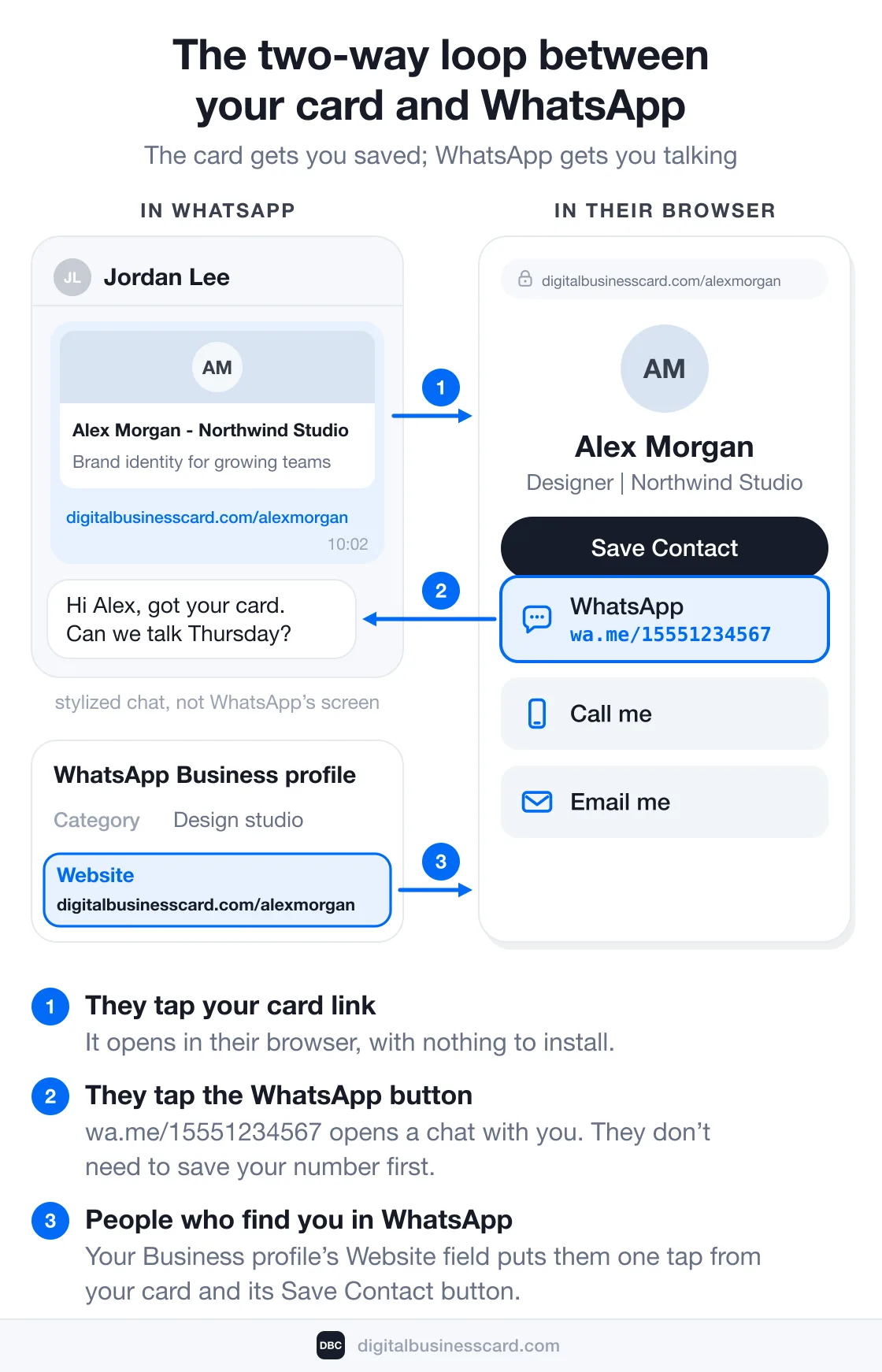
A digital business card for WhatsApp is a card link you can paste into any chat, group, Status, or profile. It opens in the other person’s browser with no app to install, shows your details with a Save Contact button, and carries a WhatsApp button — a wa.me link — that opens a chat with you in one tap. Its QR code covers the conversations that start in person.
That is a lot of reach for one link. WhatsApp has more than 3 billion monthly users worldwide, Mark Zuckerberg said on Meta’s first-quarter 2025 earnings call, as TechCrunch reported — and it is no longer just an overseas habit: the year before, he put the app at more than 100 million monthly active users in the United States, according to TechCrunch. If your clients, suppliers, or prospects message you there, your card should work there.
This guide is about WhatsApp and nothing else: the button, where the link goes inside the app, the WhatsApp rules that decide whether it looks right and can be tapped, and an honest comparison with the free tools WhatsApp Business already gives you. What a digital card is in general lives in what a digital business card is, and building one from scratch in how to make a digital business card.
Step 1: Add a WhatsApp Button to Your Card
The WhatsApp button on a card is nothing more exotic than a click-to-chat link: https://wa.me/ followed by your phone number. Tap it on a phone and WhatsApp opens a chat with you; tap it on a laptop and WhatsApp Web does the same. The person tapping does not need your number saved first — that is the whole point of click to chat.
In DBC you add it the way you add any other link: in the card editor, add a link, choose WhatsApp, and enter your number. The card turns it into a wa.me link behind a WhatsApp icon.
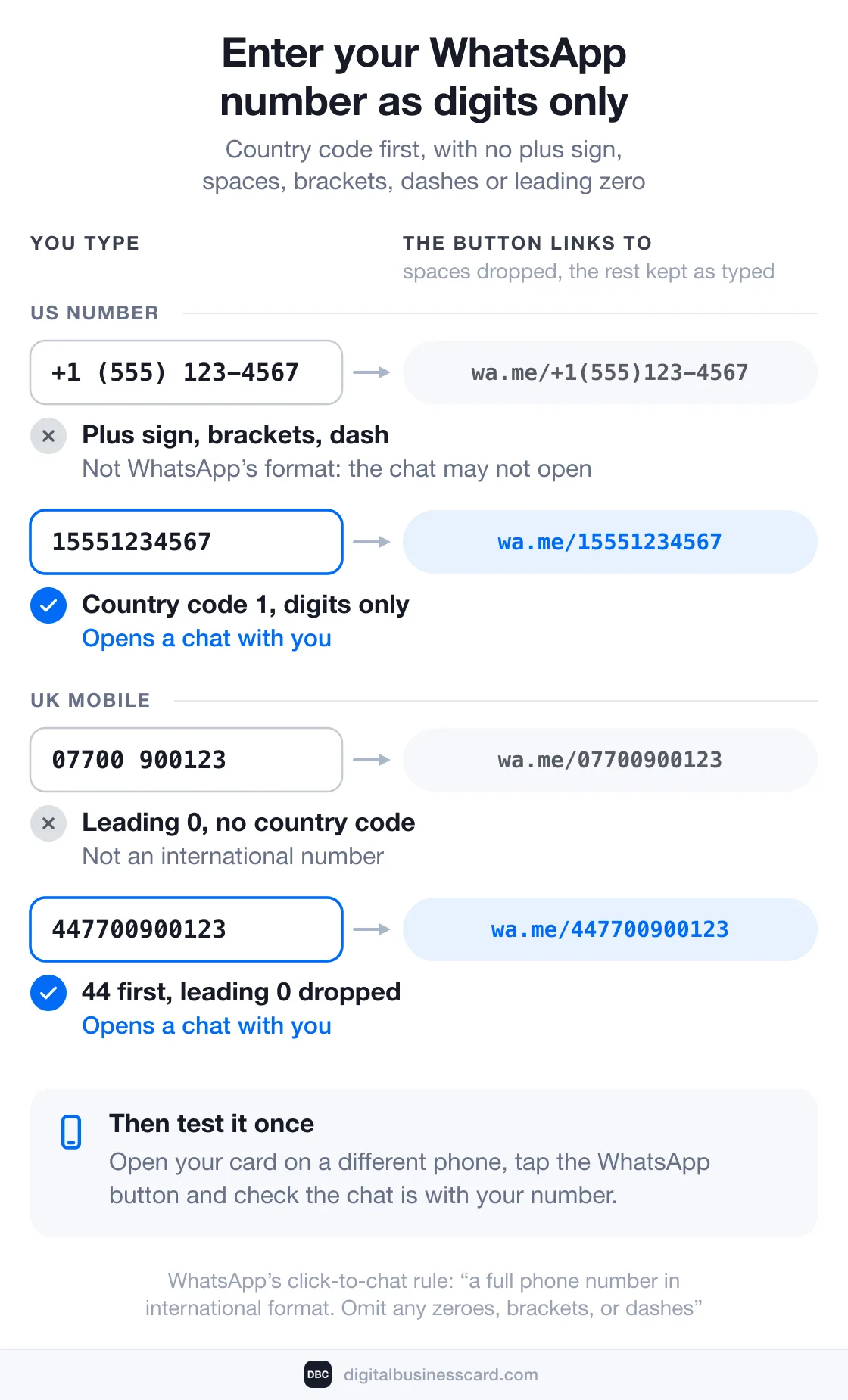
The number format is where most hand-made WhatsApp buttons break. WhatsApp’s click-to-chat help page is specific: use “a full phone number in international format” and “omit any zeroes, brackets, or dashes.” Its own example of what not to do is a number written the way most of us write numbers on paper. So type it as digits only:
You would write | Enter on the card |
|---|---|
+1 (555) 123-4567 (United States) | 15551234567 |
07700 900123 (UK mobile) | 447700900123 |
+49 151 23456789 (Germany) | 4915123456789 |
Country code first, then the number, with no plus sign, spaces, brackets, dashes, or the domestic leading zero — the UK number gets 44 in front and loses its leading 0. The button then opens wa.me/ followed by exactly those digits: wa.me/15551234567 for the US example. Then do the one test that matters: open your card on a different phone, tap the WhatsApp button, and check that a chat with your number opens. It takes ten seconds and it is the only way to know the button works before a client finds out it doesn’t.
Two smaller decisions round out the setup:
- Keep your regular phone number on the card too. Not everyone you meet uses WhatsApp, and a call button costs nothing. The WhatsApp button sits alongside it as another way in, not a replacement.
- Use the number your WhatsApp actually runs on. WhatsApp says one number can’t run WhatsApp and WhatsApp Business at the same time, so if you use both apps, they sit on two numbers — and the button needs the one you want work chats on. Pick the wrong one and people land in your personal chats.
Once the button is live, it stops being a guess. Every tap on a link on a DBC card is counted by platform, so the app’s analytics show how often your WhatsApp button was tapped, next to your card views and saved contacts.
Step 2: Share Your Card Link in WhatsApp
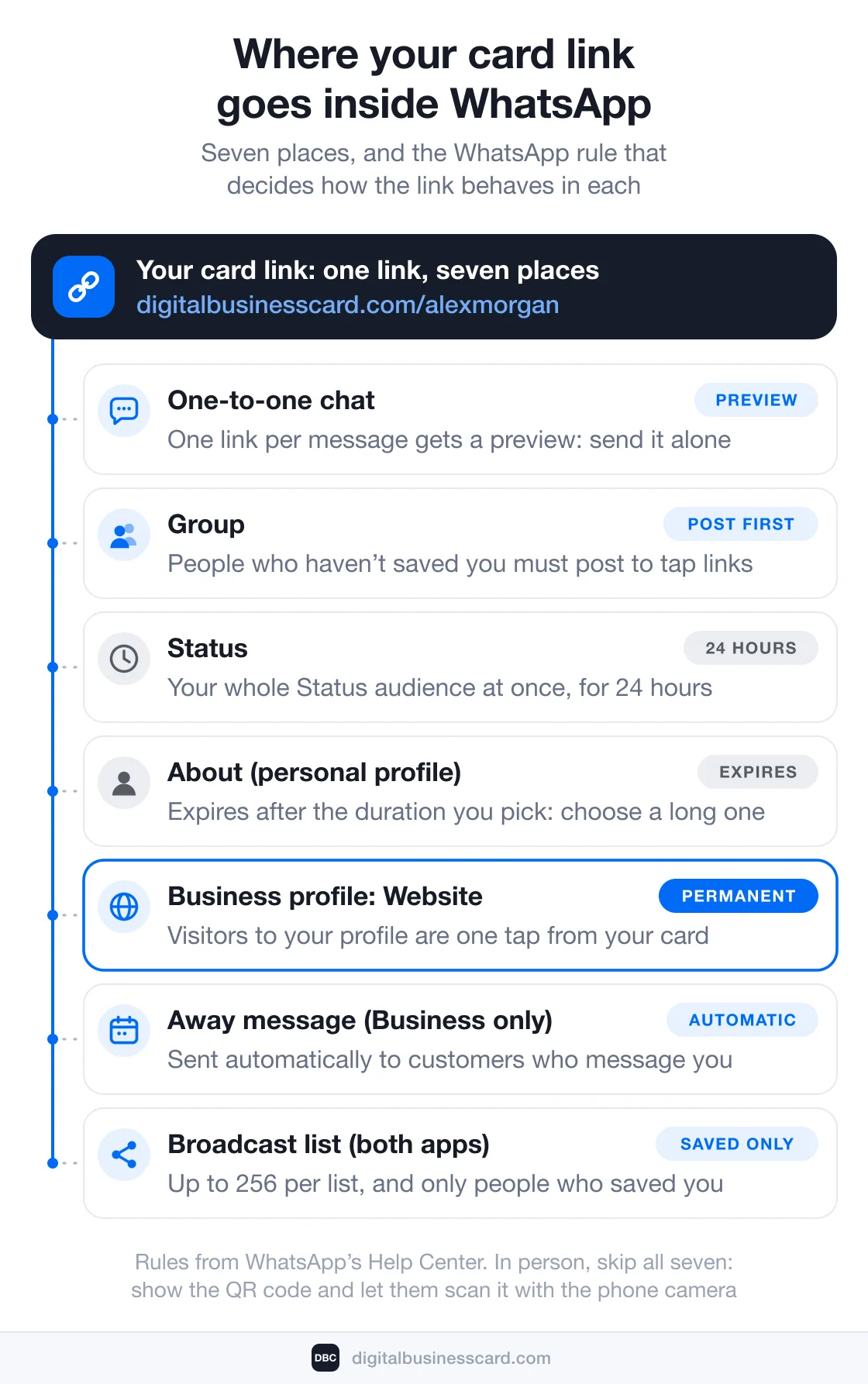
Your card lives at one permanent address — something like digitalbusinesscard.com/alexmorgan. In the DBC app, tap Share, then Copy link and paste it wherever you like — or tap Share another way to open your phone’s share sheet and pick WhatsApp there. Where you paste it changes how it behaves, because WhatsApp treats a chat, a group, a Status, and a profile differently.
In a one-to-one chat
Send the link on its own, as a message with nothing else linked in it. WhatsApp’s help center is precise about this: “Messages with just one link create a preview.” Two links in one message, and the card preview may not appear at all. Write your “Great to meet you” line as a separate message, then send the link.
If your card link goes out as bare text with no preview even when it is alone, check your own settings: WhatsApp has an optional Disable link previews switch under Settings → Privacy → Advanced. With it on, “the links you send to others won’t generate a link preview.” It is off by default, so most people never meet it.
In a group
Groups are where a card link does the most work — a networking group, a client project group, an event chat — and where one WhatsApp safety rule catches people out. When someone is in a group with people who are not in their contacts, “you’ll need to message the group to tap or click on any links.” For members who have not saved you, your link is visible but may not be tappable until they have posted in that group themselves.
So in a group of strangers, give the link context people can act on: introduce yourself in a line, then post the card link, and expect it to become tappable for people once they have joined the conversation. In a group where you are already a saved contact, it simply works.
On your Status
Status reaches everyone in your Status audience at once, which makes it the closest WhatsApp gets to a broadcast of your card. It also does not last: Status updates “disappear from view after 24 hours.” Treat the card link on Status as an event, not a fixture — post it when it is newsworthy: a new role, a new service, the day before a conference, the week you launch.
In your profile
On a personal WhatsApp account, the only free-text field in your profile is About, and it is built to be temporary — you pick a duration, and WhatsApp’s profile help page notes that “your About will expire after your chosen duration.” If you put your card link there, choose a long custom duration so it doesn’t quietly disappear.
On WhatsApp Business the right spot is permanent: the business profile has a website field (alongside name, category, description, address, hours, and email, per the business profile help page). Put your card link there. Anyone who opens your profile in WhatsApp is then one tap from saving your full contact — this is the second half of the two-way loop.
In away messages and broadcast lists
Two more places can carry the link without you lifting a finger, each with a catch worth knowing. One is a WhatsApp Business feature; the other works in both apps:
- Away message (WhatsApp Business only). When it is on, customers who message you automatically receive it — on a schedule, outside business hours, or always. A line with your card link turns an after-hours enquiry into a saved contact by morning.
- Broadcast lists (WhatsApp and WhatsApp Business). One message, up to 256 contacts per list — but “only people who’ve added you to their phone’s contacts will receive your broadcast message.” Broadcasting your card reaches people who already have you saved; it will not introduce you to anyone new.
In Person: Show the QR Code, Not the WhatsApp Scanner
When the conversation is face to face, open your card’s QR code — or the Apple or Google Wallet pass that keeps it one swipe away — and let the other person point their phone’s regular camera at it. The card opens in their browser, where the WhatsApp button and Save Contact are waiting.
One trap to avoid: don’t ask them to scan it from inside WhatsApp. In WhatsApp’s own words, “the WhatsApp camera can only scan official WhatsApp QR codes,” so a card QR scanned from the WhatsApp scanner goes nowhere. The phone camera reads any QR code. If you want the QR on paper as well, we walk through it in how to create a QR code for a business card.
What the Person on the Other End Sees
When your link arrives as its own message, WhatsApp builds the preview from your card. The title line reads your name and company — “Alex Morgan - Northwind Studio,” for example. The line underneath is your card’s bio, and the image is your profile photo (the DBC logo stands in when you haven’t added one). Leave the bio empty and that second line is either missing or a generic one. A filled-in bio and a real photo are what make the preview look like a person rather than a link.
A tap opens the card in their browser. They do not install anything or create an account; the card is a web page. From there they can call, email, open the WhatsApp chat, visit your links, and tap Save Contact.
Save Contact hands their phone a standard vCard 3.0 file, written at that moment from your current details, with your photo embedded. Your WhatsApp button travels with it: the wa.me link is saved as one of the contact’s link rows, so a week later they can find you in their address book and still be one tap from a chat. Be precise about what stays live, though: the saved contact is a snapshot from the day they saved it. What stays current is the card link itself — the next person who opens it gets whatever is true today.
WhatsApp Business Tools vs a Digital Business Card
WhatsApp already gives businesses a lot for nothing. WhatsApp Business is “a free-to-download app” with a business profile, and it is not a niche tool: the app crossed 200 million monthly active users in 2023, up from 50 million in 2020, per TechCrunch. Every account gets a short link and a QR code that open a chat with you, and can pre-fill a default message (opened in a browser, the short link shows a web page with your business info); the QR code, in WhatsApp’s words, “won’t expire unless you reset it or delete your WhatsApp Business account.” WhatsApp even lists “business cards and marketing materials” first among the places that QR code is useful.
So the honest question is not whether WhatsApp has a business card. It is which job you need done.
WhatsApp Business tools | Digital business card |
|---|---|
Opens a WhatsApp chat with your business | Opens your card — every way to reach you, the WhatsApp button included |
Suits people already on WhatsApp who want to chat now | Suits anyone, on any phone or laptop, WhatsApp or not |
They keep a chat thread | They keep a saved contact with your name, title, company, photo, phone, email, and links |
Outside WhatsApp, it points back into WhatsApp | Also works in email, LinkedIn, texts, and in person by QR or wallet pass |
A fixed WhatsApp profile layout | A card design you choose from templates, with your photo and links |
You see only what happens inside WhatsApp | You see card views, saved contacts, and taps on each link, the WhatsApp button included |
Uses the number your Business app runs on | Uses any number you choose for the button, plus your other numbers |
Free to download | A paid plan — DBC Individual is $6.99 per user per month, billed annually |
When the native tools are enough
If your whole business happens inside WhatsApp — customers find you there, order there, and pay you there — the free business profile, short link, and QR code already do the essential job. Fill in the profile completely, add your catalog, set a default message on the short link, and print the WhatsApp QR code at the counter. You do not need a separate card to start chats with people who are already in WhatsApp.
When a card earns its place
A card pays off the moment your contacts are not all in one app. A US buyer who lives in iMessage and email, a recruiter who wants your LinkedIn, a partner who will save you to their address book and forget which chat you were in — the WhatsApp short link sends all of them into a chat, while a card lets each of them reach you the way they prefer and keeps you in their contacts afterwards.
The setup we recommend uses both, linked in both directions: your card carries a WhatsApp button, and your WhatsApp Business profile’s website field carries your card link. That is how we built DBC to fit around WhatsApp rather than compete with it.
Sending a WhatsApp Contact (vCard) vs Sending Your Card Link
WhatsApp can also send a contact directly: in a chat, tap the attachment icon and choose Contact to send, in WhatsApp’s words, “the information of a contact saved in your phone’s address book.” It is quick, and for a one-off it is fine.
The difference is time. A shared contact is a frozen copy of one address-book entry — whatever you had typed there on the day you sent it, and nothing about how it looks or what else you do. When your number, title, or company changes, every contact you have ever sent is out of date. A card link goes the other way: it always opens your current card, and Save Contact writes a fresh file each time. If you want the mechanics of the contact file itself — versions, fields, and why photos go missing — we covered them in what a vCard is.
FAQ
How do I share a business card on WhatsApp?
Do I need WhatsApp Business to use a digital business card?
Does the person I send it to need an app?
Why doesn’t my card link show a preview in WhatsApp?
Why doesn’t the WhatsApp button on my card open a chat?
How much does a digital business card for WhatsApp cost?

A content writer with over 8 years of experience creating analytical content for digital products and B2B SaaS companies. His work focuses on practical guides, pricing breakdowns, and comparisons that help teams evaluate costs, features, and differences between tools.
Your first impression decides everything
- Look professional and build trust instantly
- Forget about reprints and lost contacts
- Update your details anytime
 Get Started Today