
Contents
Before You Start: A Five-Minute Prep ChecklistStep 1: Pick a Card Platform, Not a Design ToolStep 2: Add Your DetailsStep 3: Brand ItStep 4: Test the Save FlowStep 5: Put Your Card EverywhereHow We Built This Flow at DBCConclusionFAQHow to Make a Digital Business Card in 5 Steps (2026)
To make a digital business card, pick a card platform (not a graphic-design tool), add your name, job title, contact details, and photo, then brand it with your logo and colors. The platform generates a permanent link and QR code that open your card in any browser — share them from your phone, email signature, or wallet pass. The whole process takes about five minutes, and the person receiving your card doesn’t need any app.
That’s the short version. The longer, honest version is that most people stall on this five-minute task twice: once by starting without their assets ready, and once by building the card in a graphic-design tool — ending up with a JPG that can’t save anyone’s contact.
This guide fixes both: a prep checklist, the five real steps, and the distribution setup most guides skip entirely. And if you want the full definition first — what these cards are and how the sharing technology works — start with our guide on what a digital business card is, then come back here to build yours. You won’t be early to this, by the way: according to QR Tiger’s research, about 37% of small businesses and 23% of individuals already use digital business card apps.
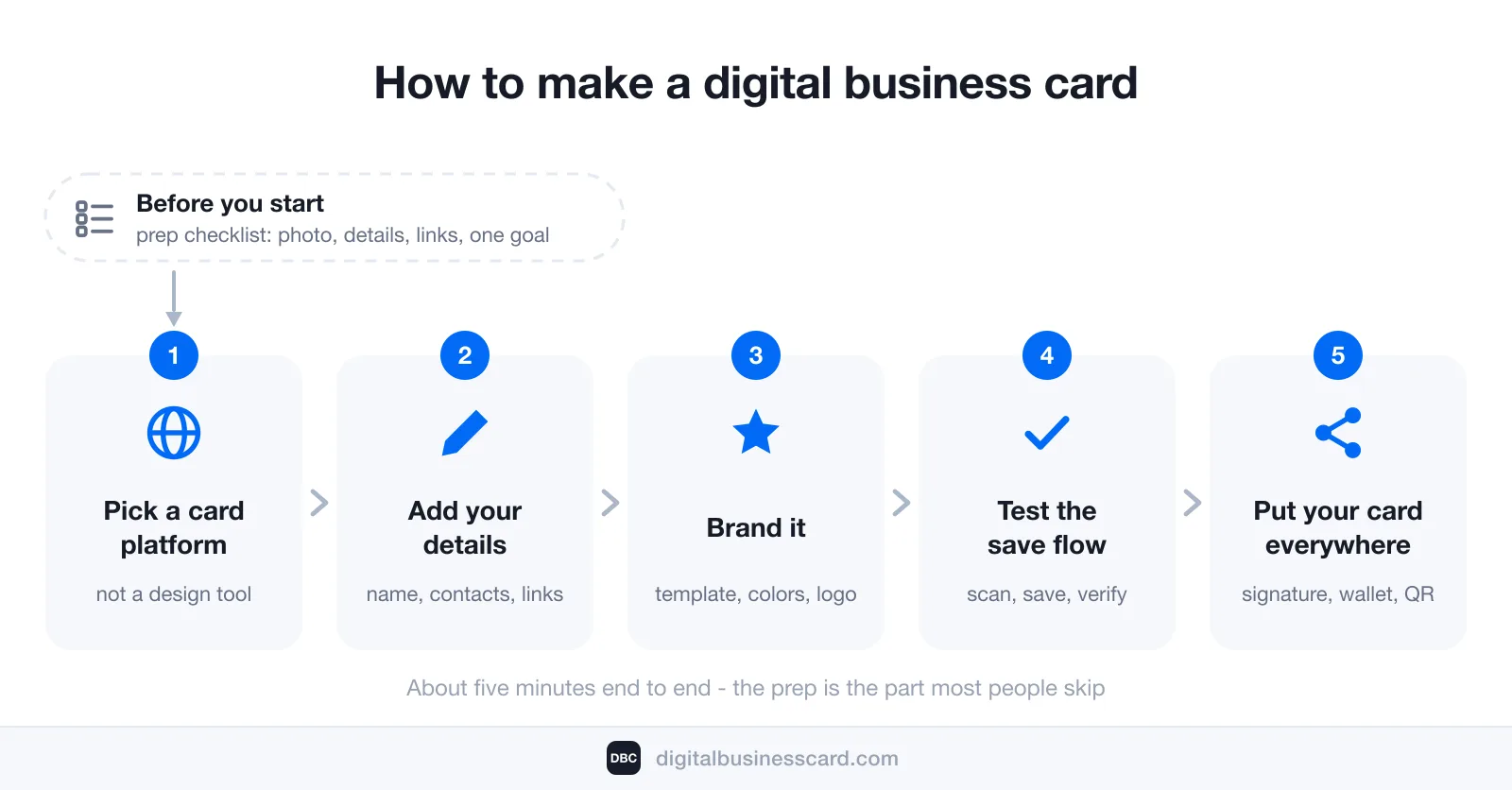
Before You Start: A Five-Minute Prep Checklist
The difference between a five-minute build and a stalled one is rarely the platform — it’s whether your assets are ready before you open it. Collect these first:
- The basics: your name, job title, and company, written the way you want them saved in someone’s phone.
- One phone number and one email you actually answer. A card with four numbers is a card nobody calls.
- A headshot or logo — square, sharp, and recognizable at thumbnail size.
- Your brand colors, or at least one color you use consistently.
- Three to five links, no more: website, LinkedIn, and whatever proves your work — a portfolio, a booking calendar, a product page.
- One goal. Decide what a new contact should do after saving you: book a call, see your work, visit the site. Every element that doesn’t serve that goal is clutter.
With this list in hand, the build itself is the fastest part of the process.
Step 1: Pick a Card Platform, Not a Design Tool
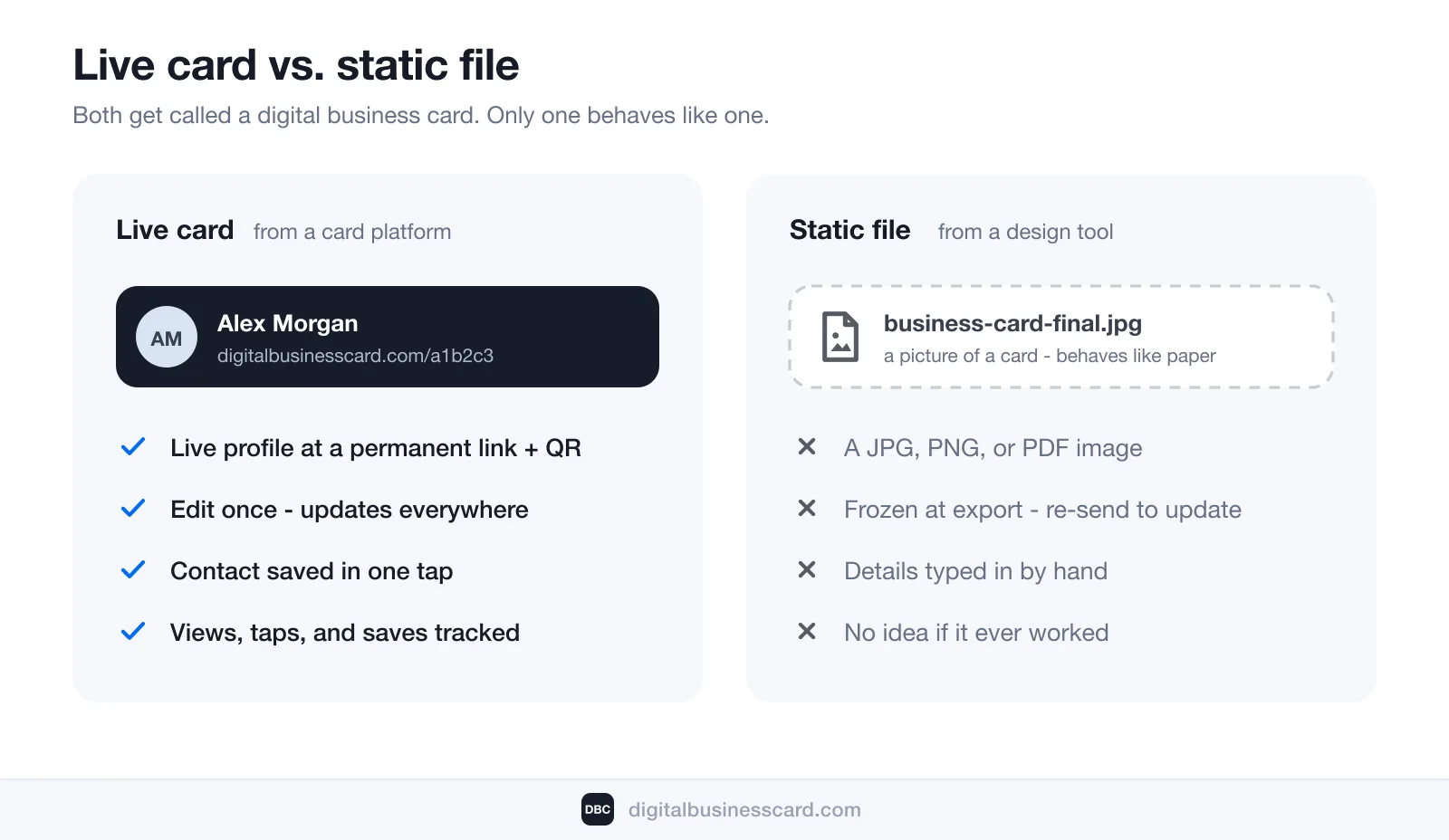
Here’s the mistake that wastes the most time, and none of the tools benefiting from it will warn you: a graphic-design tool making “digital business cards” produces a static file — a JPG, PNG, or PDF of a card. It looks digital, but it behaves like paper: the details are frozen at export, nobody can tap your number to call you, and nothing gets saved to contacts.
What you want is a card platform — a service that hosts your card as a live profile with a permanent link and QR code. The difference in practice:
What matters | Live card (card platform) | Static file (design tool) |
|---|---|---|
What you get | A live profile at a permanent link + QR | A JPG, PNG, or PDF image |
When details change | Edit once — updates everywhere instantly | Re-export and re-send to everyone |
Saving your contact | One tap into their phone’s address book | Manual typing from an image |
Analytics | Views, taps, and saves tracked | None — you never know if it worked |
When you compare platforms, check for four things: one-tap contact saving (the card exports a contact file, not just displays text), wallet passes for Apple and Google Wallet, analytics, and no app required on the receiving end — every extra tap you ask of the recipient lowers the odds your details get saved. I compared the leading options feature by feature in the best digital business cards if you want a full rundown before choosing. And if you’re building from your phone, we wrote a separate iOS walkthrough on how to create a digital business card on iPhone — App Store install, Apple Wallet pass, and the iOS sharing surfaces included.
Step 2: Add Your Details
Open your platform, take the checklist from above, and build the identity layer in order: name, title, company, then contact details, then links.
Two rules make this step work:
- Every line should be an action. On a live card, your phone number is a tap-to-call button and your email opens a draft. If a platform renders your details as plain text, that’s paper behavior in a browser tab.
- Cut to one goal. Remember the single action you chose in the prep list. A card that asks a new contact to do one thing outperforms a card that lists everything you’ve ever done. Put that one link first; let LinkedIn and the rest follow it.
Fill in every field you kept deliberately — an empty title or a missing photo reads as unfinished, and this card is often the first thing a new contact sees from you.
Step 3: Brand It
Design isn’t decoration here — it’s the part people remember and judge. Per QR Tiger’s statistics roundup, 72% of people judge a company or person by their business card design. And the effect compounds: Adobe found that a colored card is typically kept ten times longer than a standard white one. Those numbers come from the paper era, but the habit survived the format: people judge the card before they judge you.
Branding a digital card takes three decisions:
- Template: pick one that puts your photo and your one goal above the fold, not a layout that buries them under a link pile.
- Colors: your one or two brand colors, applied consistently — background, buttons, accents. Match your website, and the card feels like part of your business instead of a third-party profile.
- Logo and photo: the square, sharp versions from your prep list. Blurry uploads undo everything the template does.
If you want to see how these decisions look in practice before making your own, I collected real layouts in digital business card examples.
Step 4: Test the Save Flow
This is the step everyone skips, and it’s the one that decides whether your card works. Your card has exactly one job: to end the interaction with your details saved in the other person’s phone. So test that job before your first event, not during it.
The routine takes two minutes and needs one extra phone:
- Open your QR code on your own screen.
- Scan it with the second phone — the camera app, no special scanner.
- Tap through to your card and hit the save button.
- Open the address book and look at the result: is your name right, did the photo come through, are the number and email correct and tappable?
If any step feels clumsy — a slow load, a confusing button, a contact that saves under the wrong name — fix it now, while it costs nothing. This save flow is precisely the advantage paper never had: Adobe’s numbers show 88% of handed-out paper cards are thrown away in less than a week, mostly without the details ever being saved. A card that lands in the contacts app in one tap has nothing left to throw away.
Step 5: Put Your Card Everywhere
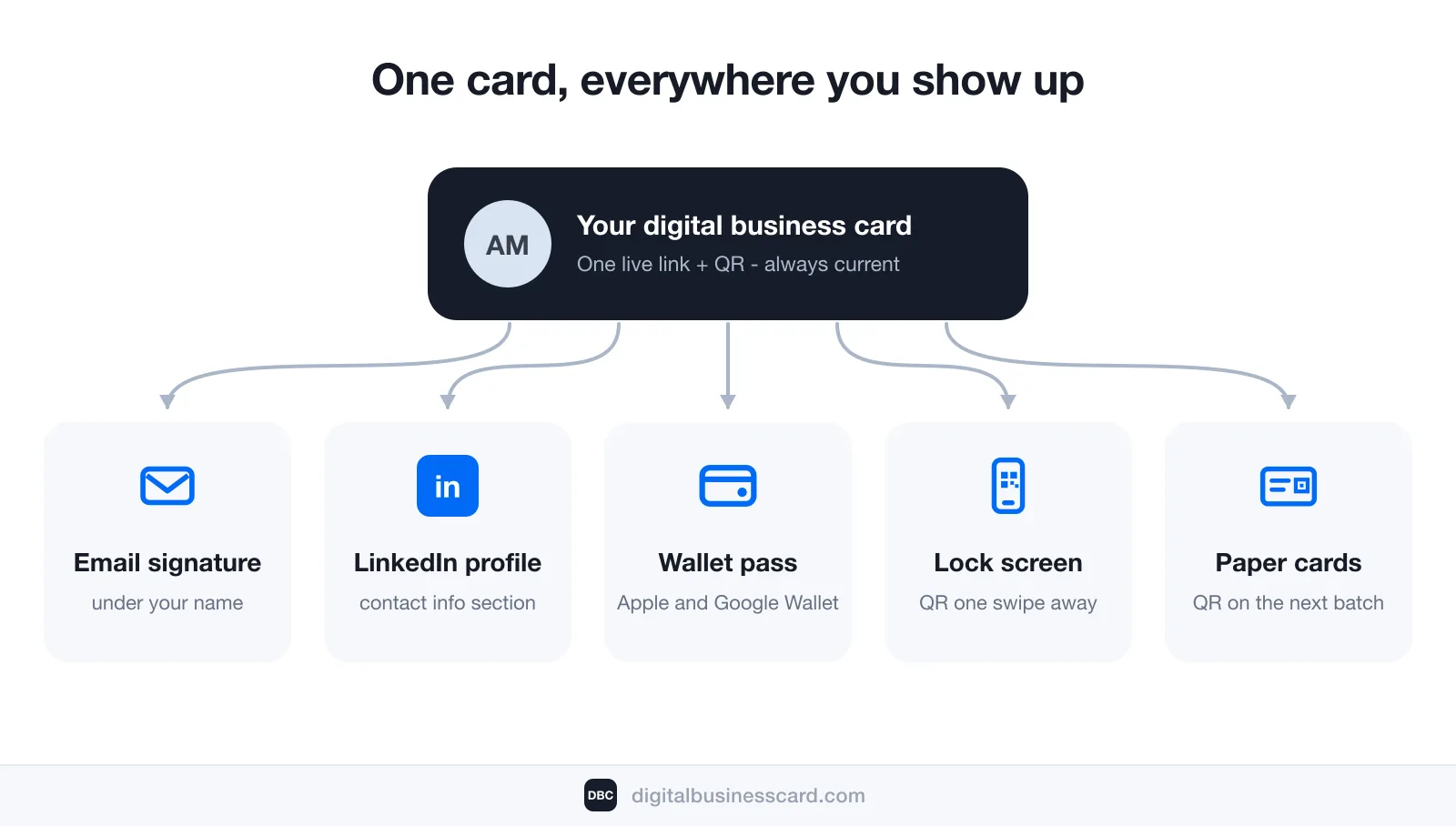
A digital business card only works when it’s already within reach at the moment you need it. Creation isn’t finished until the card is distributed:
- Email signature — your card link under your name turns every email you send into a networking touchpoint.
- LinkedIn — add the link to your profile’s contact info or featured section.
- Wallet pass — put the card in Apple Wallet or Google Wallet so the QR code sits one swipe away on your lock screen. We wrote a separate walkthrough on adding your business card to Apple Wallet.
- NFC tap — the same live card can travel over NFC: modern phones can share it with a tap, and NFC-chipped accessories from other vendors can carry your link if you want the physical ritual — the card itself needs no hardware.
- Lock screen or home screen — some platforms generate a QR wallpaper or a home-screen shortcut; at a busy event this saves the ten seconds that decide whether an exchange happens.
- Your leftover paper cards — print your QR code on the next batch (or a sticker on the current one), and the paper you still hand out starts pointing at a profile that never goes stale.
How We Built This Flow at DBC
Full disclosure: we make DBC: Digital Business Card, and the five steps above are exactly the flow we built the product around. On DBC the worked example looks like this: choose a design-first template, fill in the identity layer from your prep list, apply your brand colors and logo, and the card is live at its permanent link with a QR code and Apple and Google Wallet passes generated for you. The receiving side needs no app and no account — the card opens in the browser, and saving your contact is one tap.
Two things we added because the basics weren’t enough: two-way exchange, so your card can capture the other person’s details instead of just delivering yours, and analytics that show views and saves — meaning you can run the Step 4 test and then keep watching the save flow work in the real world, conversation by conversation.
Conclusion
Making a digital business card is genuinely a five-minute task — but only the middle of it is about software. The real sequence is: prepare your assets, choose a platform that hosts a live card instead of exporting a picture, build and brand it deliberately, test the save flow on a second phone, and then put the card everywhere your next contact might meet you.
Do it once, properly, and you’ve replaced every future print run. The format is becoming the default, not the novelty — Mordor Intelligence sizes the digital business card market at $217.04 million in 2026, heading to $331.78 million by 2031. Making yours now puts you on time, with a card that updates itself for years.
FAQ
How do I make a digital business card on my phone?
Does the other person need an app to see my card?
Can I turn my paper business card into a digital one?
How long does it take to make a digital business card?
How much does it cost to make a digital business card?

A content writer with over 8 years of experience creating analytical content for digital products and B2B SaaS companies. His work focuses on practical guides, pricing breakdowns, and comparisons that help teams evaluate costs, features, and differences between tools.
Your first impression decides everything
- Look professional and build trust instantly
- Forget about reprints and lost contacts
- Update your details anytime
 Get Started Today