
Contents
Step 1: Get a Card Platform App from the App StoreStep 2: Build the Card on Your PhoneStep 3: Put It in Apple WalletStep 4: Share It the iPhone WayHow This Flow Looks on DBCConclusionFAQHow to Create a Digital Business Card on iPhone (2026)
To create a digital business card on your iPhone, download a card platform’s app from the App Store (or open the platform in Safari), add your name, job title, photo, and contact details — your card goes live at a permanent link with a QR code. Add that card to Apple Wallet so it sits a side-button double-click from your lock screen, then share it with a QR scan, an AirDrop, or the share sheet. The person receiving it needs no app, no account, and no iPhone.
If you’re doing this on an iPhone, you’re in good company: iOS holds 58.35% of the US mobile-OS market as of June 2026, according to StatCounter, so for most American professionals the iPhone isn’t just where the card gets shared — it’s where the whole card gets made. And the format itself is past the early-adopter stage: QR Tiger’s research counts 37% of small businesses and 23% of individuals already using digital business card apps.
This guide is deliberately iOS-specific. The platform-agnostic groundwork — the prep checklist, why a card platform beats a graphic-design tool, branding decisions, testing the save flow — lives in our guide on how to make a digital business card, and if you want the definition first, start with what a digital business card is. Here we cover only what’s different when the whole job happens on the phone: the App Store, Apple Wallet, and the iOS sharing surfaces.
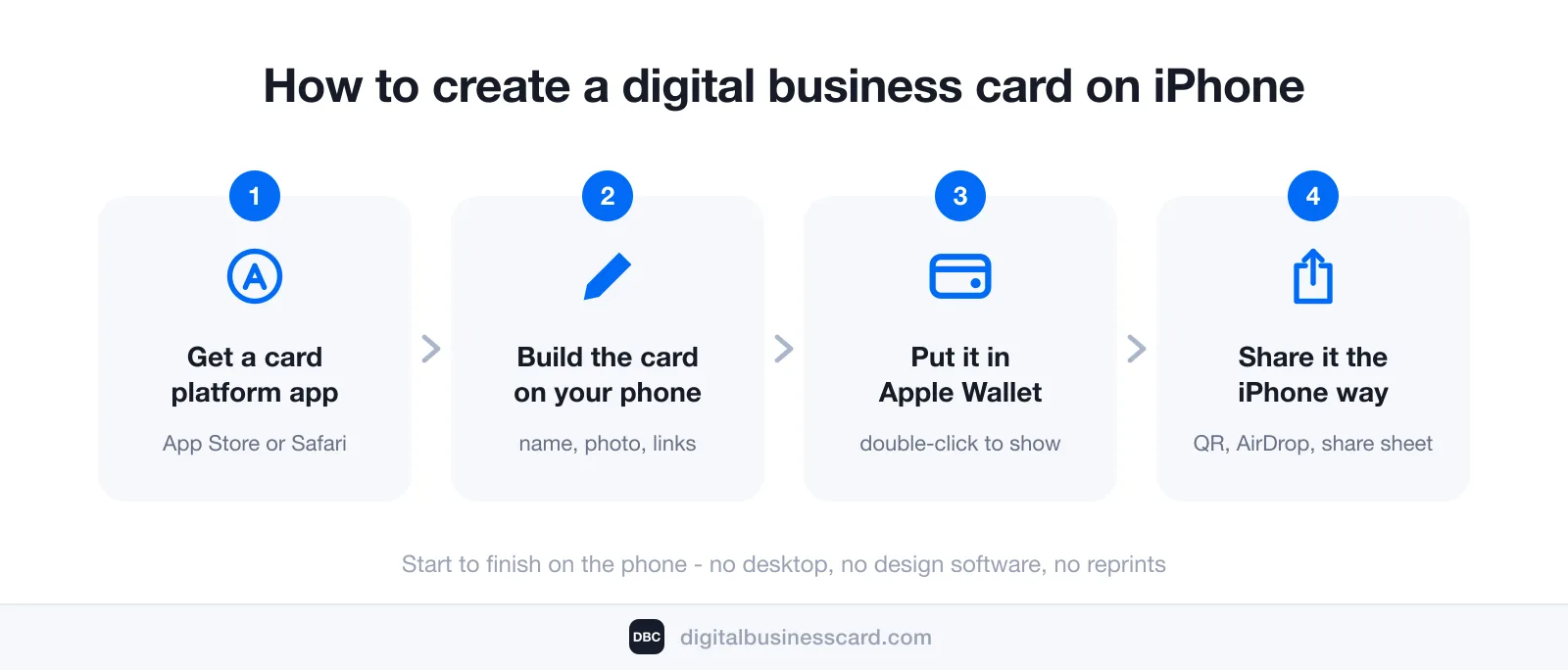
Step 1: Get a Card Platform App from the App Store
On an iPhone you have two doors into the same card: install the platform’s app from the App Store, or open the platform in Safari and build there. Both produce the same live card at the same permanent link. The app earns its install with the iPhone-native extras: it generates your Apple Wallet pass, uses the camera to scan paper cards you receive, and keeps your card’s analytics one tap away instead of one login away.
Before you install anything, vet the listing the way you’d vet a hire — it takes thirty seconds:
- Rating with real volume. A 4.9 built on a handful of reviews is noise; a 4.9 across hundreds is a signal.
- Wallet pass support. If the listing never mentions Apple Wallet, the card will live in a browser tab instead of on your lock screen.
- Nothing required on the receiving end. The listing (or the platform’s site) should say the recipient needs no app — every extra tap you ask of a stranger costs you saved contacts.
Since we make one of these apps, here’s our own listing as the worked example: DBC: Digital Business Card on the App Store is a free download, rated 4.9 across 340 ratings, runs on iOS 13.4 or later, and takes 59.1 MB — less space than a minute of 4K video on your camera roll.
Step 2: Build the Card on Your Phone
Sign up, then build the identity layer: name, job title, company, one phone number, one email, and three to five links that prove your work. The full prep checklist — and the reasoning behind “one number, one email” — is in the main guide; we won’t repeat it here.
What’s worth repeating is how much of it the iPhone does for you. Your best headshot is already in the camera roll — crop it square before uploading. The iOS keyboard autofills your own number and email into the form fields, which kills the most embarrassing failure a business card can have: a typo in your own phone number. And when the card is live, test it where it counts — tap your number on the card and confirm the iPhone actually starts the call. On a live card every line is a button, and you’re holding the device those buttons were made for.
Step 3: Put It in Apple Wallet
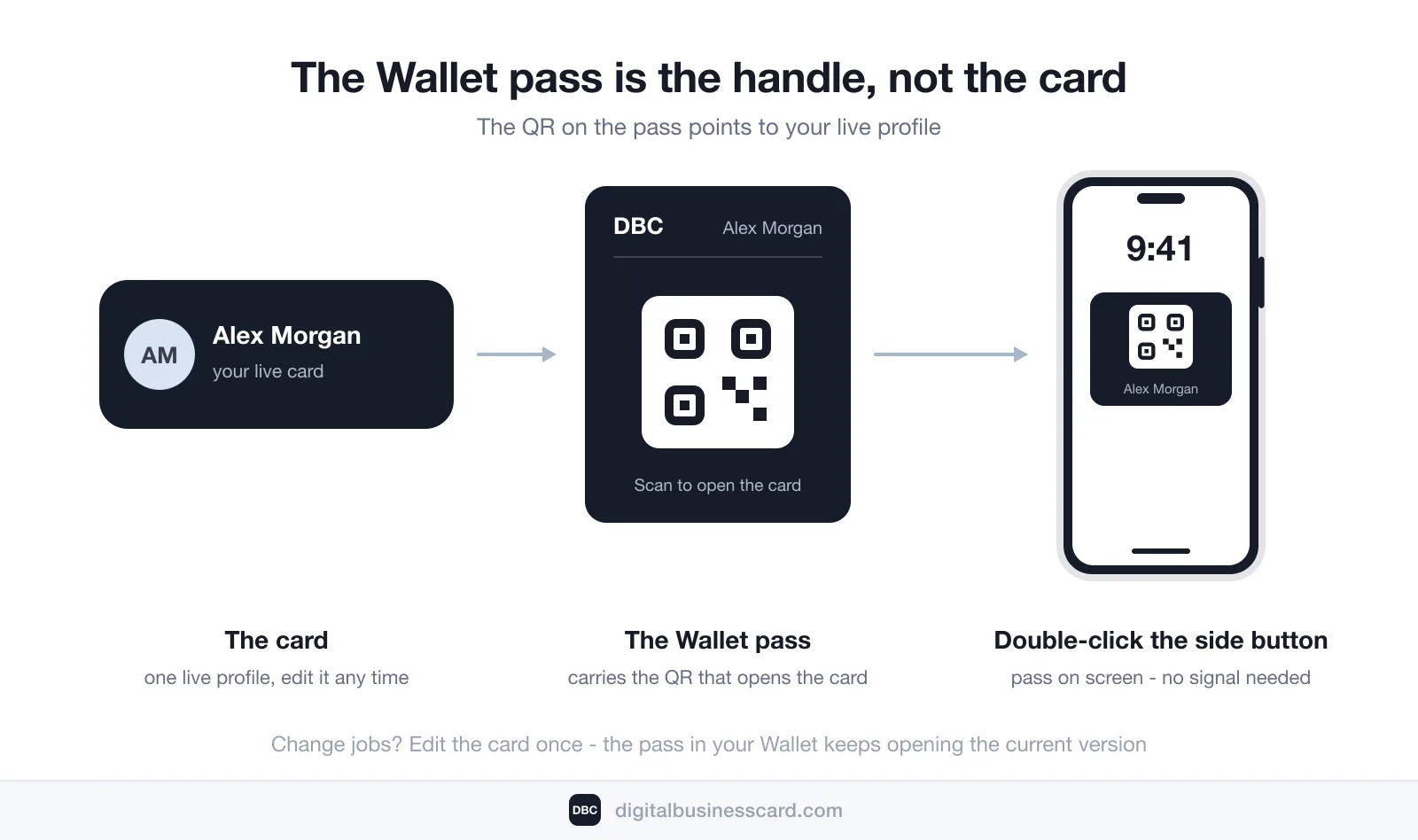
The Wallet pass is what makes a digital business card feel iPhone-native. Your card platform generates a pass that carries your QR code; from then on, a double-click of the side button puts your card on screen — from the lock screen, mid-conversation, without hunting for an app or a link. The pass renders without a signal too, which matters in exactly the places networking happens: conference basements, exhibition halls, airplanes.
Think of the pass as the handle, not the card. The QR on the pass points to your live profile, so when you change jobs or numbers, you edit the card once and the pass in your Wallet keeps opening the current version — nothing to reissue, nothing to re-send.
The gist is three taps: open your card in the app, tap Add to Apple Wallet, and confirm with Add when the pass preview appears. For the full tap-by-tap walkthrough, with troubleshooting, see our separate guide on adding your business card to Apple Wallet.
Step 4: Share It the iPhone Way
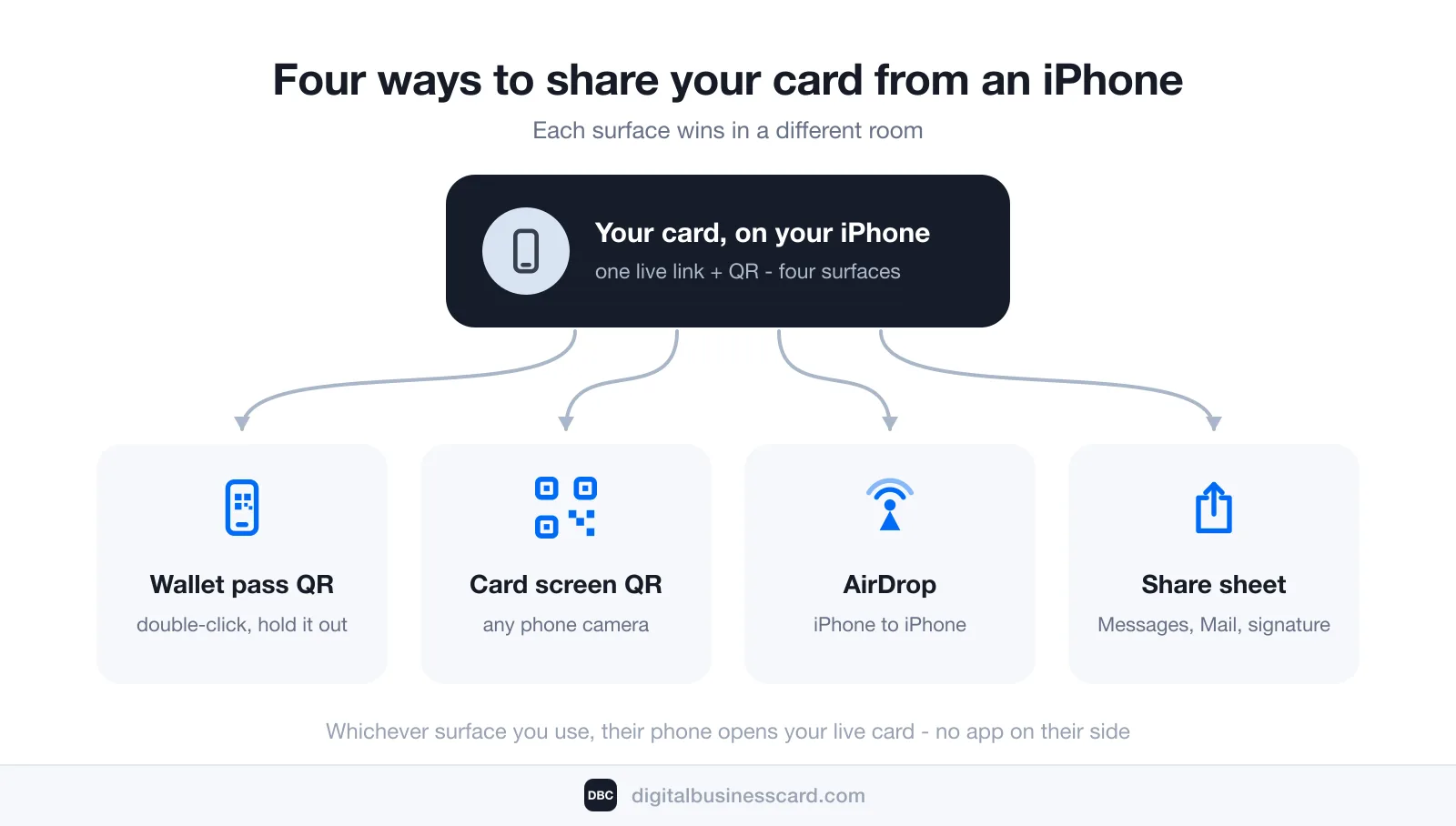
iOS gives you four sharing surfaces, and each one wins in a different room:
- The Wallet pass QR — fastest at events. Double-click the side button, hold the screen out, they scan. No unlock, no app-hunting, works offline.
- The QR on your card screen — the cross-platform default. Any phone camera scans it, iPhone or Android, and the card opens in their browser. If you want the QR itself done right — size, contrast, print use — see our guide on creating a QR code for a business card.
- AirDrop — the iPhone-to-iPhone room. Open your card, hit the share sheet, AirDrop the link; their phone opens your live profile on the spot.
- The share sheet everywhere else — Messages, Mail, WhatsApp, LinkedIn DMs. The same link also belongs under your name in your email signature, where it networks while you sleep.
A note on iOS 17’s NameDrop: holding two iPhones together swaps native contact posters, and it’s a lovely trick — but it stays inside the Apple ecosystem and it hands over a static contact, not a live card. Use it for personal numbers; use your card for business.
Whichever surface you use, the goal is the same: end the interaction with your details saved, not handed over. Adobe’s research found 88% of handed-out paper cards get thrown away in less than a week — a QR scan that lands your contact in someone’s address book has nothing left to throw away.
How This Flow Looks on DBC
Full disclosure: we make DBC: Digital Business Card, and the four steps above describe our own iPhone flow. Install the app from the App Store (or start in Safari — the same account works in both), pick a design-first template, and fill in your details; the card goes live at its permanent link with a QR code, and the app generates your Apple Wallet pass. From there the iPhone is the whole toolkit: share from Wallet, AirDrop, or the share sheet.
Two things we added because sharing alone isn’t networking: two-way contact exchange, so your card captures the other person’s details instead of only delivering yours, and analytics that show views and saves — you see which conversations actually ended in your contact being kept. And when someone hands you a paper card, the app’s scanner turns it into a saved contact with the camera, so the paper habit dies on both sides of the exchange.
Conclusion
Creating a digital business card on an iPhone is a start-to-finish phone job: install or open the platform, build the card where your photo and details already live, put the pass in Apple Wallet, and share through whichever iOS surface the moment calls for. No desktop, no design software, no reprints — and the card you make today keeps updating for years.
The format is heading mainstream on schedule: Mordor Intelligence sizes the digital business card market at $217.04 million in 2026, on its way to $331.78 million by 2031. Your iPhone is already in your pocket; the card might as well be too.
FAQ
Can I create a digital business card on my iPhone without installing an app?
Should I add my card to Apple Wallet or just save it as a contact?
Can Android users open a digital business card made on an iPhone?
Does sharing from an iPhone work without internet at an event?
How much does it cost to create a digital business card on an iPhone?

A content writer with over 8 years of experience creating analytical content for digital products and B2B SaaS companies. His work focuses on practical guides, pricing breakdowns, and comparisons that help teams evaluate costs, features, and differences between tools.
Your first impression decides everything
- Look professional and build trust instantly
- Forget about reprints and lost contacts
- Update your details anytime
 Get Started Today