
Contents
Why Your Email Signature Is Your Best Card RackLink, Button, QR, or vCard: What Actually Goes Into the SignatureBefore You Start: Get Your Card’s LinkHow to Add Your Card to a Gmail SignatureHow to Add Your Card to an Outlook SignatureHow to Add Your Card in Apple Mail“I Wanted a Signature Generator” — It Depends Who’s AskingRolling It Out to a Whole TeamFive Rules That Keep a Signature WorkingConclusionFAQAdd a Digital Business Card to Your Email Signature (2026)
To add your digital business card to your email signature, copy your card’s permanent link and paste it into your mail client’s signature editor: in Gmail, Settings → See all settings → Signature; in new Outlook and Outlook on the web, Settings → Accounts → Signatures; in Apple Mail, Mail → Settings → Signatures. Add the link as a short line of text (“View my digital business card”), attach it to a button-style image, or place a small QR code next to it — then save and send yourself a test email. The person who receives it needs no app: your card opens in any browser.
That one-time setup turns your busiest channel into a card rack. An estimated 376 billion emails were sent and received daily in 2025, projected to reach 424 billion by 2028, according to Statista — and a long-standing Radicati Group estimate, cited by Campaign Monitor, puts the average business user at about 121 of them every day. You’re already sending the emails. The signature just makes every one of them carry your card.
This guide walks through the exact setup in the three clients that carry nearly all email opens, compares the four ways to embed a card (link, button, QR, attached vCard), and covers the team rollout. If you’re new to the format itself, start with what a digital business card is — here we assume you have one and focus on getting it into your signature.
Why Your Email Signature Is Your Best Card Rack
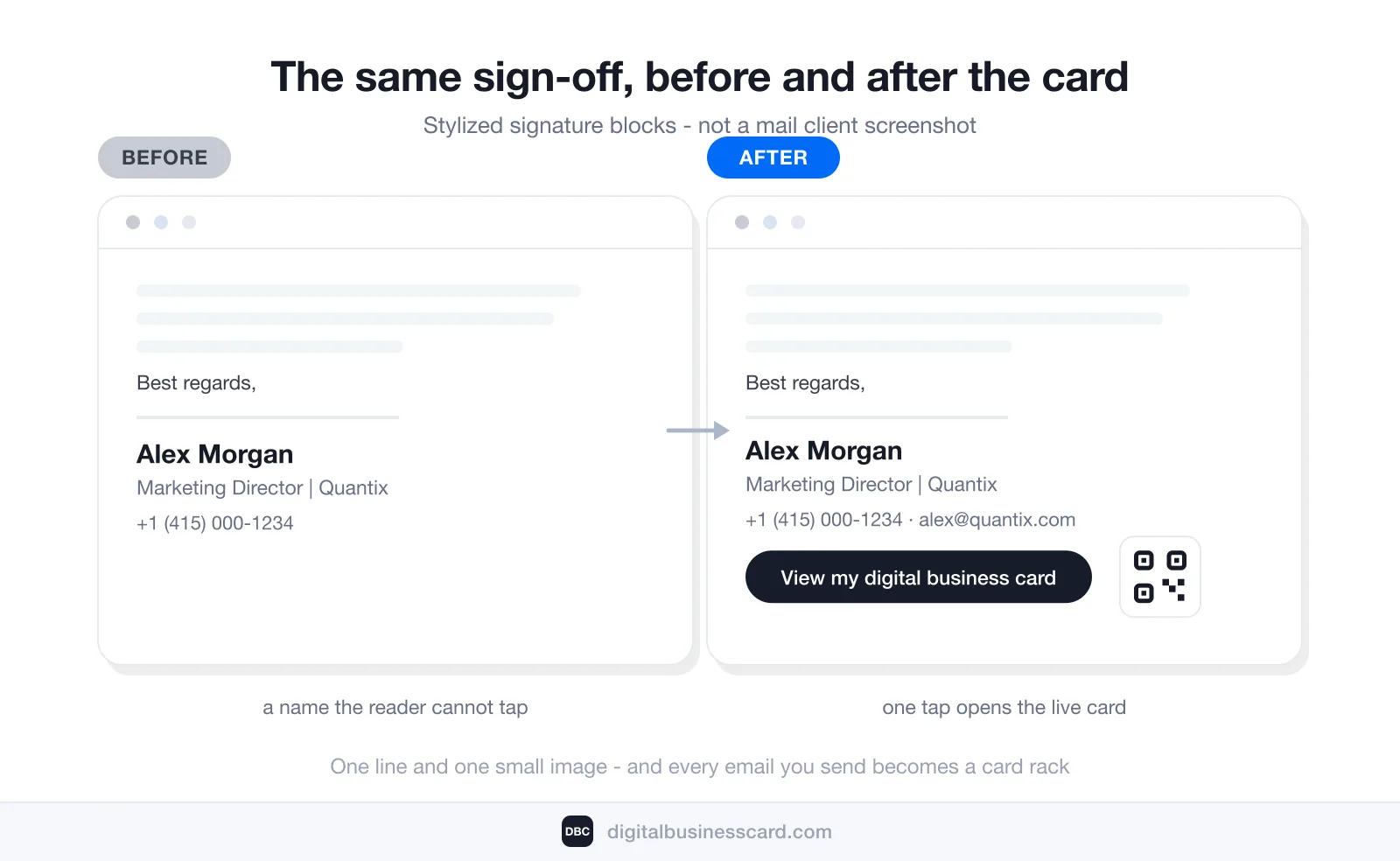
Every other way of sharing a card needs a moment: a meeting, a scan, a tap. The signature is the only one that works while you do something else. With 121 business emails flowing through the average professional’s day, even the sent share of your own traffic adds up to thousands of card impressions a year, earned without lifting a finger — and unlike a paper card or a static PDF attachment, the link always opens the current version of your details.
The channel is big enough that an entire product category lives on it: HiHello alone reports 1.6 billion+ emails sent in a year with its signatures. You don’t need any special tooling to claim your share of that surface, though — just a live card and five minutes in your mail settings.
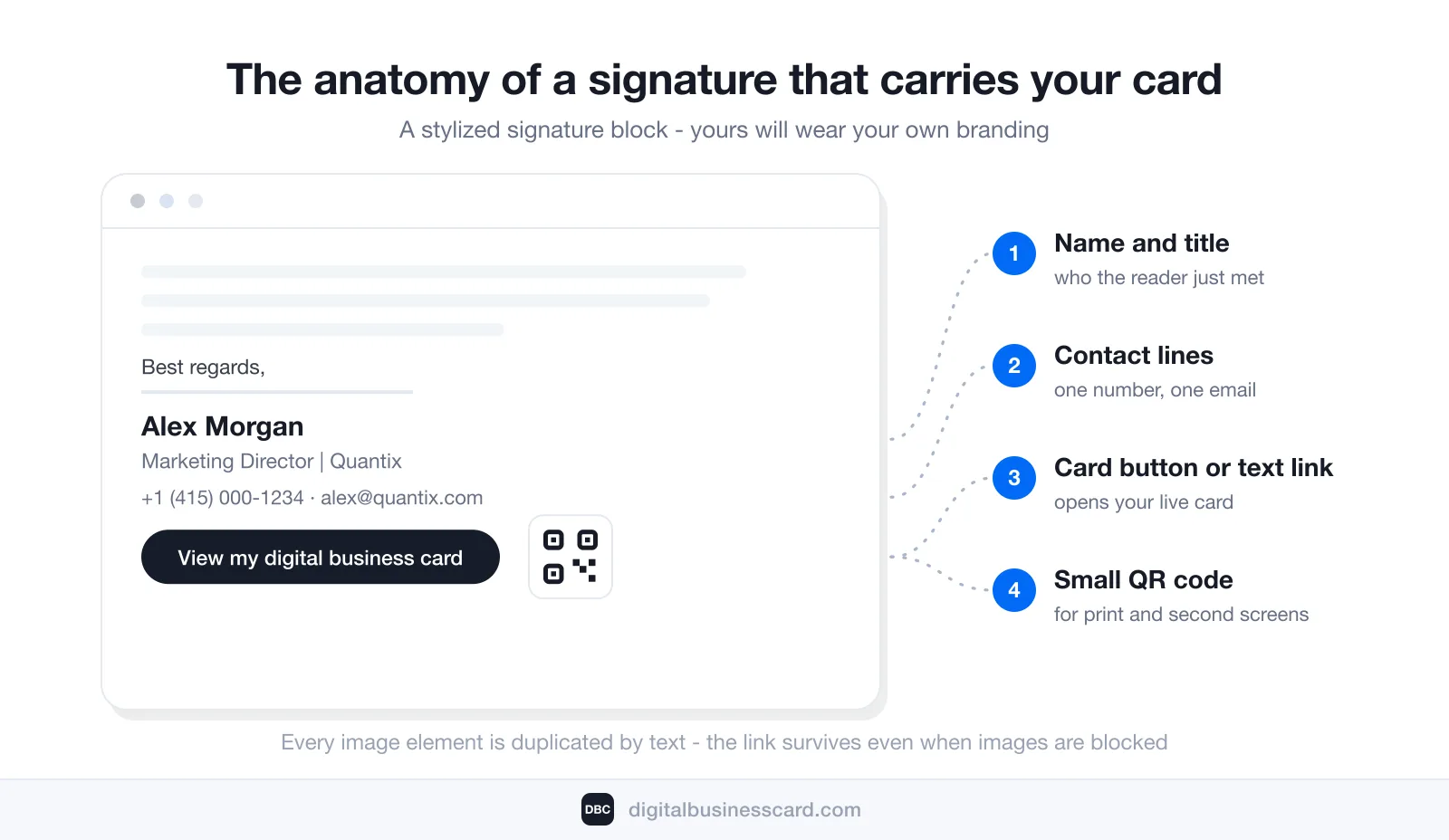
Link, Button, QR, or vCard: What Actually Goes Into the Signature
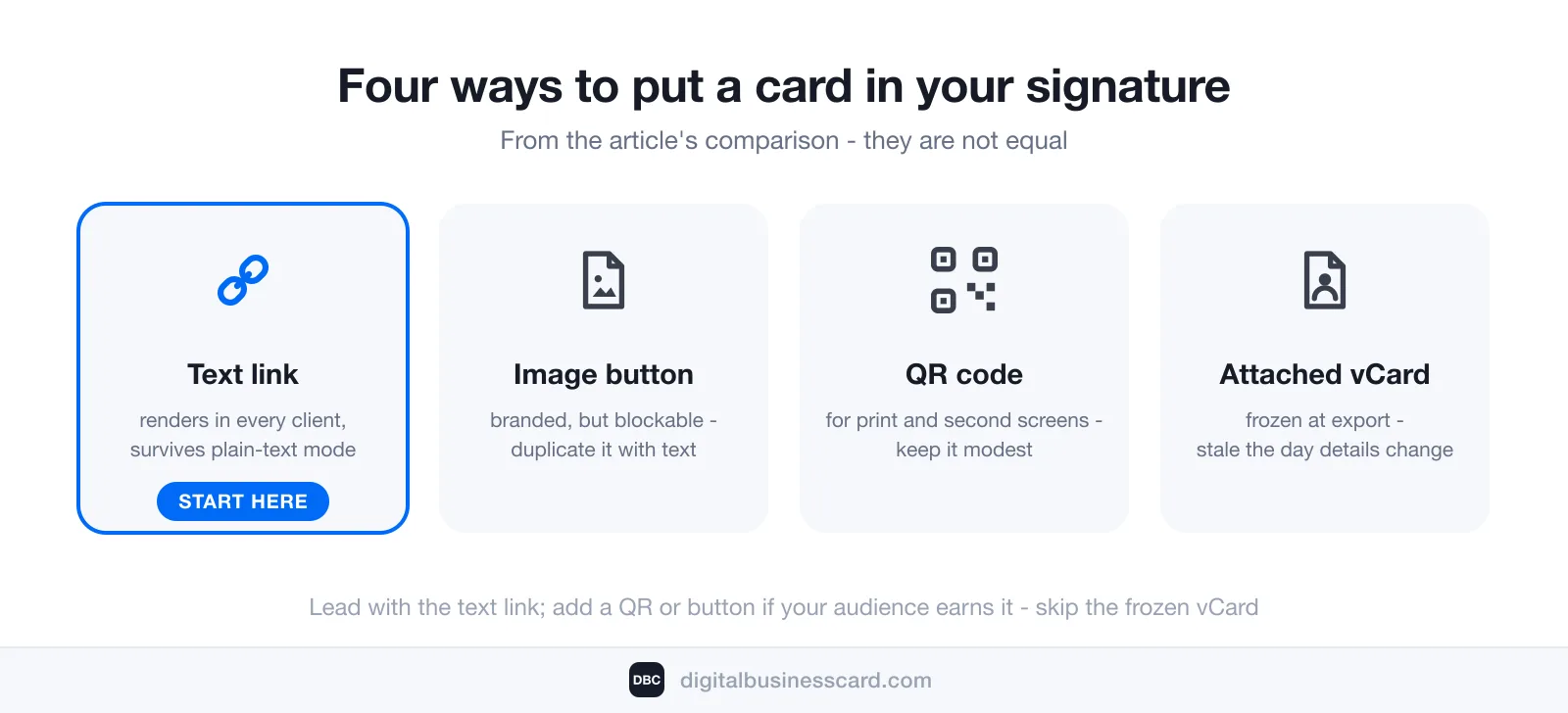
“Adding your card to your signature” means one of four things in practice, and they are not equal:
Format | How it looks | When it wins | Watch out |
|---|---|---|---|
Text link | “View my digital business card” under your name | Everywhere — light, renders in every client, survives plain-text mode | Easy to overlook if buried among six other links |
Image button | A small branded button or banner linked to your card | Visual industries; branded team signatures | Some clients block images by default; always duplicate as text |
QR code | A small QR image next to your details | Recipients who print emails or read them on a second screen | Useless if too small or low-contrast; adds visual weight |
Attached vCard | A .vcf file or “Electronic Business Card” image (classic Outlook) | Legacy workflows that expect a contact file | Frozen at export — when your details change, every sent copy is stale |
Our recommendation is boring and reliable: a short text link as the primary format, with a QR code or button added on top if your audience justifies it. The attached vCard — the mechanism Microsoft still documents for classic Outlook — is the digital equivalent of paper: it delivers a snapshot of your details, and the snapshot starts aging the moment you hit send. A card link points to a live page, so the contact a recipient saves next quarter is still correct.
One sizing note on QR codes: the legibility rules from print carry over to screens. Keep the code about the size it would be on a paper card, give it clear space, and keep the contrast high — the full rules are in our guide to QR code size. A signature QR that dominates the block gets cropped, compressed, or ignored; a modest one next to your name does its job.
Before You Start: Get Your Card’s Link
The prerequisite for everything below is a live card — a permanent link and QR code hosted by a card platform, not a JPG of a card. If you don’t have one yet, our five-step guide on how to make a digital business card gets you there in about five minutes. On our platform, every DBC card comes with a permanent link and a downloadable QR code the moment it’s created — that pair is exactly what your signature will carry.
Copy the link (and download the QR image if you plan to use one), and pick the wording for your anchor text. Short and literal beats clever: “View my digital business card” or “Save my contact” tells the reader precisely what the tap does.
How to Add Your Card to a Gmail Signature
Gmail’s signature lives in the web settings (per Google’s help page):
- Open Gmail, click Settings (the gear), then See all settings.
- In the Signature section, create a signature or select your existing one.
- Type your sign-off block — name, title, phone — then add the card line: paste your card’s link, or type “View my digital business card”, select it, and use the link button to attach the URL.
- To add a QR code or button, insert the image, then select it and apply the same link so the image is clickable too.
- Click Save Changes at the bottom.
Gmail allows up to 10,000 characters in a signature, and images count toward that limit — one more reason to keep the QR modest. If the signature won’t save, resize the image and try again.
How to Add Your Card to an Outlook Signature
New Outlook for Windows and Outlook on the web share the same flow (per Microsoft’s support doc):
- Go to Settings → Accounts → Signatures.
- Select Add signature and give it a name — “Main with card”, for example.
- Build the block in the editor: Outlook supports links and images, so paste the card link on its own line or attach it to your text and button image, the same way as in Gmail.
- Use the checkboxes to apply the signature automatically to new messages and to replies and forwards — the card earns its keep on replies, where most real conversations happen.
- Select Save.
Classic Outlook also has an older, separate mechanism: attaching an “Electronic Business Card” — a vCard rendered into the signature. It works, but it ships a frozen contact file, with every copy going out of date the moment your details change. The link format does the same job and stays current, which is why we recommend it even to long-time Outlook users.
How to Add Your Card in Apple Mail
On a Mac (per Apple’s Mail guide): choose Mail → Settings, click Signatures, select the email account, then click Add and name the new signature. Type your block, select the card line, and turn the text into a link; a QR or button image can be dragged straight into the preview area.
Even if you never compose in Apple Mail, your recipients read in it: Litmus measured Apple’s mail clients at 64.66% of email opens in May 2026, with Gmail at 24.11% and Outlook at 6.49%, across over a billion tracked opens. Whatever client you send from, send yourself a test and open it on an iPhone — that’s the rendering most of your audience will actually see.
“I Wanted a Signature Generator” — It Depends Who’s Asking
If you’re an individual and you searched for a tool that designs the signature block itself — layout, fonts, banners — you want a signature generator, and ours is the wrong door: DBC does not generate personal email signatures. Canva, MySignature, Blinq, and HiHello all offer one, and we’d rather point you at them plainly than pretend otherwise. For a solo user, what we make is the card the signature points to — and it works with any signature, wherever it came from. Hand-typed or generated, embedding the card is the same move: paste the link, attach it to text or an image, save. The generator decides how your signature looks; the card decides what happens after the click.
For teams, the answer is different: email signatures are part of our DBC Teams solution, not a third-party add-on. Our companies offering rolls out branded signatures with the card built in — one brand identity across every inbox, no mismatched signatures or outdated headshots — and a scan from the signature saves the card and captures the contact as a lead. If you’re setting this up for a team, skip the generator hunt and start in the dashboard at dash.digitalbusinesscard.com/sign-up.
Rolling It Out to a Whole Team
For a team, the signature-plus-card combination solves a problem generators alone can’t: keeping the details behind the signature current. A signature template enforces how ten or two hundred sign-offs look; the card links inside them decide whether the contact a prospect saves is up to date. Because each card is a live page, a title change or new phone number is edited once and is immediately correct in every signature that links to it — including emails sent last year.
With DBC Teams you don’t stitch this together by hand: email signatures are part of the solution. Alongside centrally managed cards — templates, branding, roles, and access in one dashboard — the rollout gives every rep a branded signature with their card inside, so a prospect’s scan saves the card and lands in your pipeline as a captured lead. Pricing sits on the Business plan ($4.99 per card/month, billed annually), and B2B teams get a 30-day trial to run the pilot before committing.
Five Rules That Keep a Signature Working
- One card link, not three. A signature with card, portfolio, calendar, and four socials buries the action you care about. Pick the one tap you want.
- Duplicate every image with text. Buttons and QR codes vanish in clients that block images; the text link underneath always survives.
- Keep the block light. Stay well under Gmail’s 10,000-character ceiling — a heavy signature slows sends, trips clipping, and reads as noise on mobile.
- Test where your audience reads. Send yourself a test and open it in the top three clients — Apple Mail, Gmail, Outlook — which together carry about 95% of opens.
- Let the card do the updating. Resist pasting your whole CV into the signature; details belong on the card, where editing once updates every email you’ve ever sent.
Conclusion
An email signature is the cheapest distribution your digital business card will ever get: one setup in Gmail, Outlook, or Apple Mail, and every message you send — including the replies that make up most of your day — carries a live, tappable version of you. Format it as a short text link first, add a QR or button if your audience earns it, skip the frozen vCard, and test the result on an iPhone. Then forget about it, and let the signature work through all of next year’s emails.
FAQ
Does the recipient need an app to open my card from an email signature?
Should I use a link or a QR code in my email signature?
What is the difference between an attached vCard and a digital business card link?
How big should a QR code be in an email signature?
Can I add my digital business card to a signature made with a generator?

A content writer with over 8 years of experience creating analytical content for digital products and B2B SaaS companies. His work focuses on practical guides, pricing breakdowns, and comparisons that help teams evaluate costs, features, and differences between tools.
Your first impression decides everything
- Look professional and build trust instantly
- Forget about reprints and lost contacts
- Update your details anytime
 Get Started Today